Download AmogOS for PC
AmogOS reskins Debian Bullseye with an Among Us crewmate look: custom wallpapers, a lightweight Openbox desktop, and a sus sense of humor built in.
What Is AmogOS?
A Linux distro built entirely around one running joke, and it still boots like a real operating system.
AmogOS is a free Linux distribution built around the running joke that everyone in Among Us is sus. It isn’t built from scratch. The team took Debian Bullseye, added a separate Raspberry Pi OS build for ARM boards, and reskinned almost everything you look at: desktop wallpapers, the terminal prompt, even the neofetch banner that prints when you open a shell. Strip away the memes and there’s a genuinely lightweight desktop underneath, running Openbox and LXDE with the Arc-Grey-Darker theme and Papirus icons, so it runs fine on older or low-spec hardware.
Who builds AmogOS
This is a hobby project, not a company. Moon1789 started it and leads the UI direction, Nooz (NoozAbooz) handles most of the core development, and peekatchoo did the original artwork. Everything lives on GitHub under the Amog-OS organization, which has picked up roughly 1.8k stars and 80 forks – modest for Linux in general, solid for a distro whose whole pitch is a costume for your desktop.
Who it’s actually for
Nobody at Amog-OS is pretending this replaces Ubuntu on your main laptop. Threads on r/linuxquestions treat it as a fun way to burn an afternoon in a VM, and r/unixporn users mostly screenshot it for the ricing showpiece value and move on. If you want a serious daily-driver desktop, look elsewhere. If you want to boot something ridiculous for a group call, show a friend “sus” neofetch output, or just see how far a meme can go before it stops being funny, AmogOS is built for exactly that.
- Full Among Us wallpaper and desktop reskin across Openbox and LXDE
- Custom neofetch/uwufetch banner on every terminal launch
- Steam and a lightweight FOSS Minecraft build preinstalled out of the box
- Raspberry Pi build bundles Wine and Box86 so some x86 apps run on ARM
The current release is v1.5.0 LTS, nicknamed “The ReSUScitation,” a roughly 1.4 GB ISO built for x86_64 PCs. The separate Raspberry Pi track reached v1.7.1 before that branch stopped moving. Neither has shipped an update since August 2023, so it’s fair to treat AmogOS as a finished snapshot you install for laughs rather than something getting active security patches. It ships under its own “Little Sus Distro (LSD) License v1.1,” a permissive license the AmogOS contributors wrote themselves rather than reusing GPL or MIT terms.
Curious what AmogOS looks like feature by feature? See the full breakdown below, or jump straight to the download section.
Key Features of AmogOS
A full Debian reskin built by the community, not a corporate lab. Here’s what actually ships in the ISO.
Full Among Us UI Reskin
Every desktop wallpaper, boot screen, and icon set is themed around the crewmate look. The Papirus icon pack and Arc-Grey-Darker GTK theme carry the color language through file managers, panels, and menus instead of stopping at the wallpaper.
Openbox and LXDE Desktop
AmogOS runs Openbox window management with an LXDE panel and the Whisker menu instead of GNOME or KDE. That keeps RAM usage low enough to run comfortably in a VM with 2GB allocated, which matters for a distro most people boot for a few hours.
Debian Bullseye Base
The x64 build sits on Debian Bullseye, so apt, dpkg, and standard Debian package repositories work exactly like they would on any Debian install. Nothing about the theming touches the underlying package system.
Custom Neofetch Branding
Open a terminal and neofetch (or uwufetch) prints AmogOS-specific ASCII art and system info instead of the generic Debian logo. It’s a small touch, but it’s the detail that convinces people this is an actual maintained fork, not a repainted stock ISO.
Minecraft Preinstalled
A free, open-source Minecraft client (Minecraft Pi Reborn / Prism Launcher) ships out of the box, so there’s a playable game the moment the desktop loads. No account setup or extra downloads are needed to try it.
Among-Sus Terminal Game
A bundled terminal-based Among Us clone called “among-sus” runs entirely in the console, no GPU acceleration required. It’s the one feature that’s pure inside joke, and it’s also genuinely playable over SSH.
macOS-Style Desktop Switching
Scrolling the mouse wheel on the desktop background cycles between virtual workspaces, a gesture lifted straight from macOS Mission Control. It’s a small usability upgrade Openbox doesn’t include by default.
Steam Preinstalled (v1.5.0+)
Steam ships preloaded starting with the 1.5.0 “ReSUScitation” release, so Linux-native and Proton-compatible games can run without a separate install step. This is limited to the x64 PC build.
SusIDE Code Editor
AmogOS bundles its own lightweight code editor, SusIDE, for quick edits without pulling in a full VS Code install. It’s aimed at the kind of casual scripting a ricing/tinkering distro like this actually gets used for.
Pacstall Package Manager
On top of standard apt, AmogOS preinstalls Pacstall, an AUR-style package manager for Debian-based systems. It gives access to a wider community package pool without needing to add third-party repos manually.
Raspberry Pi builds add a Wine and Box86 compatibility layer for running select x86 apps on ARM (that track is no longer updated). See the full breakdown in System Requirements.
AmogOS System Requirements
AmogOS is a riced Debian Bullseye build, so it runs on the same hardware Debian does. Two tracks exist: an x86_64 build for PCs and VMs, and a Raspberry Pi build (discontinued, no longer updated).
| Component | Minimum (x86_64) | Recommended (x86_64) |
|---|---|---|
| Base System | Debian Bullseye compatible | Debian Bullseye compatible |
| Processor | 64-bit x86 CPU, single-core | 64-bit x86 CPU, dual-core or better |
| RAM | 1 GB | 2 GB or more (matches typical VM allocation) |
| Disk Space | 4 GB free (ISO is ~1.4 GB) | 8 GB free for installed system + Steam/Minecraft |
| Boot Media | USB drive (4 GB+) or VM virtual disk | USB 3.0 drive for faster live-boot loading |
| Graphics | Any GPU with basic 2D acceleration | Any GPU; Steam titles depend on Proton/native Linux support |
| Internet | Not required to boot or use the desktop | Recommended for apt updates and Pacstall packages |
Download AmogOS
The x86_64 build is the actively distributed version. It boots as a live ISO, so you can try it from USB or a VM before installing anything.
AmogOS 1.5.0 LTS — “The ReSUScitation”
Download AmogOSVersion 1.5.0 | ~1.4 GB | x86_64 ISOSource Code & All Releases
Browse every AmogOS release, checksums, and older builds directly on the Amog-OS GitHub organization page.
View on GitHubRaspberry Pi Build (v1.7.1)
The ARM track for Raspberry Pi boards, bundling Wine and Box86 for limited x86 app support. This branch is discontinued and no longer receives updates — install at your own risk.
Find Legacy Pi BuildAmogOS ships as a bootable ISO, not a Windows/macOS installer. Flash it to a USB drive with a tool like Rufus or balenaEtcher, or mount it directly as a virtual disk in VirtualBox/VMware. Full steps are in Getting Started. Full spec details are in System Requirements above.
AmogOS Screenshots
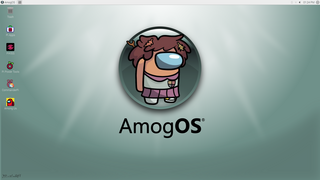
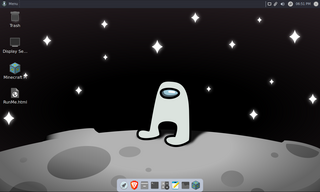
A look at the Openbox/LXDE desktop, the Among Us-themed lock screen, and the boot branding — straight from the actual OS, no mockups.
Getting Started with AmogOS
From downloading the ISO to opening your first terminal and seeing the “sus” neofetch banner — here’s the full walkthrough.
Downloading AmogOS
Grab the ISO from our download section above rather than an old tutorial link — AmogOS has moved hosts before, and amogos.studio in particular is dead and no longer official. The current build is 1.5.0 LTS “The ReSUScitation,” a single x86_64 ISO around 1.4 GB, released August 30, 2023.
There’s only one file to choose, which keeps this step simple: no 32-bit vs 64-bit decision, no separate installer vs portable build. If you’re specifically after the Raspberry Pi track, that’s version 1.7.1 and it’s a different, older, unmaintained image — expect it to lag behind the PC build in every way.
On a decent connection, the 1.4 GB download takes a few minutes. Because it’s a live-boot ISO rather than a Windows-style setup.exe, you won’t run an installer file directly from Windows — the next step covers turning it into something you can actually boot.
Installation Walkthrough
You have two realistic paths: boot it live from a USB drive on real hardware, or mount the ISO in a virtual machine. Most people who just want to see what the fuss is about start with a VM, since AmogOS hasn’t been updated since 2023 and isn’t something you want as your only OS.
Option A — USB boot on real hardware:
- Download Rufus (Windows) or balenaEtcher (Windows/macOS/Linux).
- Insert a USB drive of at least 4 GB. Everything on it will be erased.
- In Rufus/Etcher, select the AmogOS ISO and your USB drive, then flash it.
- Reboot your PC and enter the boot menu (usually F12, F10, or Esc depending on your motherboard) and select the USB drive.
- At the GRUB menu, choose “Live boot” to try it without installing, or the install option if one is shown, to write it to disk.
Option B — Virtual machine (recommended for first try):
- Install VirtualBox or VMware Workstation Player.
- Create a new VM: type “Linux,” version “Debian (64-bit),” at least 2 GB RAM and 8 GB disk.
- Attach the AmogOS ISO as the virtual optical drive instead of creating a blank hard disk boot.
- Start the VM and boot from the mounted ISO.
The x64 build takes noticeably longer than a normal Linux ISO to reach the desktop from USB boot — the project’s own README half-jokes it’s “like a whole 69420 secs,” so don’t assume it’s frozen. Give it a few minutes on first boot.
Initial Setup & Configuration
AmogOS doesn’t run a first-boot setup wizard the way Ubuntu does — it drops you straight onto the Openbox/LXDE desktop with the login already handled by default credentials. Use these to log in or open a terminal with sudo:
| Build | Username | Password |
|---|---|---|
| x86_64 (PC) | amogos | amogos |
| Raspberry Pi | pi | raspberry |
First things most people change:
- Password: run
passwdin a terminal if you’re installing to disk rather than just live-booting. - Wallpaper: right-click the desktop, or browse
~/Pictures/.AmogOS/where the rotating seasonal wallpapers (Christmas edition, ocean, desert, and others) are stored locally. - Keyboard layout: LXDE’s panel keyboard applet, or
setxkbmapfrom a terminal, if your layout isn’t US English.
Since this build sits on Debian Bullseye, standard Debian package management works out of the box. Run sudo apt update && sudo apt upgrade once you’re connected to the internet, keeping in mind the AmogOS-specific theming and packages themselves haven’t been touched since 2023, only the underlying Debian security patches move.
Your First Session: The Terminal, Minecraft, and Among-Sus
The fastest way to confirm you’re actually running AmogOS and not a stock Debian rice is to open a terminal from the Whisker menu in the taskbar. On launch, neofetch (or uwufetch) fires automatically and prints AmogOS-branded ASCII art alongside your system info — OS name, kernel, DE (Openbox), theme (Arc-Grey-Darker), and shell.
From there, three things worth trying in your first session:
- Minecraft: a FOSS build (Minecraft Pi Reborn / Prism Launcher) is preinstalled and launches straight from a desktop icon — no account or extra download needed.
- among-sus: the bundled terminal Among Us clone. Run
among-sus-serverin one terminal to host locally, thenamong-susin another to connect. To join across your LAN, usenc <ip-on-your-network>from another machine. - Steam (v1.5.0+): preinstalled on the x64 build. Launch it from the taskbar to sign in and start installing Linux-native or Proton-compatible titles.
$ among-sus
If you want to try editing something quickly, AmogOS bundles its own lightweight code editor called SusIDE — handy for small scripting tasks without pulling in a full VS Code install. And if apt doesn’t have a package you want, Pacstall is preinstalled, giving you an AUR-style community package pool on top of the standard Debian repos.
Tips, Tricks & Best Practices
- Workspace switching: scroll your mouse wheel anywhere on the desktop background to flip between the two virtual workspaces, a gesture lifted from macOS Mission Control — Openbox doesn’t do this by default, it’s an AmogOS addition.
- VM performance: if the desktop feels sluggish in VirtualBox, bump RAM to 2-3 GB and enable 3D acceleration in the VM’s display settings — Openbox is light, but the live-boot decompression at startup benefits from extra headroom.
- Don’t expect updates: the last release was August 2023. Treat AmogOS as a finished snapshot for laughs, ricing screenshots, or a novelty VM session — not a distro getting active security patches or new features.
- Where to get help: the AmogOS Discord is the most active support channel, followed by GitHub Issues on the Amog-OS org for anything that looks like a genuine bug rather than a “is this still maintained” question.
- Common beginner mistake: trying to install AmogOS as a daily-driver replacement for Ubuntu or Windows. It’s built and marketed as a joke distro first — r/linuxquestions consensus is that it’s fun for an afternoon in a VM, not a serious daily OS.
Frequently Asked Questions
Real questions people ask about AmogOS before installing it, pulled from r/linuxquestions, GitHub issues, and the project’s own README.
Is AmogOS free to download?
Yes, AmogOS is completely free. There is no paid tier, license fee, or donation requirement to download or run it — the current build, version 1.5.0 LTS “The ReSUScitation,” is a single ~1.4 GB ISO distributed through GitHub Releases.
It ships under a custom permissive license the contributors wrote themselves, called the “Little Sus Distro (LSD) License v1.1,” rather than reusing GPL or MIT terms. The underlying Debian Bullseye base it’s built on is free and open source as well, so nothing in the stack requires payment.
The project does accept voluntary donations through OpenCollective to help the two-person team cover costs, but this is optional and has no effect on access to the software.
Pro tip: only download from the official Amog-OS GitHub organization — older tutorials sometimes link to amogos.studio, which is dead and unrelated to the current project.
See the real download link in our Download section.
Is AmogOS safe to install?
Installing AmogOS from the official GitHub Releases page is safe in the same sense any hobbyist Linux ISO is safe: it’s open source, the rootfs can be inspected, and there’s no bundled adware in the release file itself.
That said, a few honest caveats matter. First, AmogOS has had no updates since August 2023, so it does not receive current Debian security patches beyond what shipped in that build. Second, there was a 2022 report on r/linux that the official marketing website briefly ran a browser-based crypto-miner script — this was about the website, not the GitHub ISO file, but it’s worth knowing before browsing amog-os.github.io with scripts enabled.
- Only download the ISO from github.com/Amog-OS/AmogOS/releases
- Run it in a VM or as a live USB session first rather than installing to your main drive
- Don’t use it as an internet-facing production system given the patch gap
Pro tip: since AmogOS is riced Debian Bullseye with no custom source code beyond theming, you can mount the squashfs .sb file yourself and inspect the rootfs before booting it, per the project’s own README.
For hardware and VM specifics, check System Requirements.
Is it safe to run AmogOS alongside Windows 11?
Yes — AmogOS doesn’t install “into” Windows 11 or modify it. It’s a separate Linux ISO that you either boot live from a USB drive, run inside a virtual machine (VirtualBox/VMware) on top of Windows 11, or dual-boot from a separate partition.
Running it in a VM is the safest option for Windows 11 users: your host OS, files, and boot configuration are completely untouched, since the VM’s virtual disk is an isolated container. Live-booting from USB is also non-destructive as long as you don’t select an “install to disk” option at the GRUB menu.
- Flash the ISO to USB with Rufus or balenaEtcher
- Boot from USB and choose “Live boot” at the GRUB menu
- Explore AmogOS without touching your Windows 11 installation at all
Dual-booting by installing to a real partition is possible but riskier — back up your data first, since partitioning mistakes can affect your Windows boot loader.
Pro tip: Windows 11’s Secure Boot can block the USB entry from appearing in the boot menu; disable it temporarily in BIOS/UEFI if AmogOS doesn’t show up.
Full steps are in Getting Started.
What is the AmogOS license?
AmogOS ships under the “Little Sus Distro (LSD) License v1.1,” a custom permissive license written by the AmogOS contributors rather than a standard GPL or MIT license, though it follows a similar BSD-style structure.
This matters for a few practical reasons: it’s not copyleft in the strict GPL sense, and the license terms are specific to this project rather than a widely-recognized template, so if you plan to fork or redistribute AmogOS, read the actual LICENSE file in the GitHub repo rather than assuming standard open-source terms apply automatically.
The underlying components — Debian Bullseye, Openbox, LXDE, and the various themes and packages — retain their own original licenses (mostly GPL or similarly permissive), since AmogOS is a theming and packaging layer on top rather than a rewrite.
Pro tip: the full license text lives at github.com/Amog-OS/AmogOS/blob/main/LICENSE if you need the exact wording for a redistribution or fork.
See the Download section for the current release this license covers.
What are the system requirements for AmogOS?
AmogOS runs comfortably on modest hardware because it’s built on lightweight Openbox and LXDE rather than a heavier desktop like GNOME. For the x86_64 build, plan on a 64-bit CPU, at least 1 GB of RAM minimum (2 GB recommended, especially in a VM), and 4 GB of free space for the ~1.4 GB ISO plus working room.
A USB drive of 4 GB or larger is needed to create bootable install media, and any GPU with basic 2D acceleration is enough for the desktop itself — Steam and 3D titles depend on your GPU’s own Linux/Proton support separately.
- CPU: 64-bit x86, single-core minimum, dual-core recommended
- RAM: 1 GB minimum, 2 GB+ recommended
- Disk: 4 GB minimum free, 8 GB+ for an installed system with Steam/Minecraft
- Internet: not required to boot or use the desktop, only for apt/Pacstall updates
Pro tip: if you’re testing in VirtualBox, allocate at least 2 GB RAM in the VM settings — the live-boot decompression at startup is the slowest part, and extra RAM speeds that up noticeably.
Full table in System Requirements above.
Does AmogOS work on Mac or other non-PC hardware?
There’s no native macOS build of AmogOS — the only two official tracks are the x86_64 PC build and a Raspberry Pi (ARM) build. On a Mac, your realistic option is running the x86_64 ISO inside a virtual machine such as VMware Fusion or VirtualBox, which works the same way it does on Windows/Linux hosts.
Apple Silicon (M1/M2/M3) Macs add a complication: AmogOS’s x86_64 ISO is built for Intel-compatible processors, so it won’t run natively under ARM virtualization without an x86 emulation layer, which will be noticeably slower. Intel-based Macs can run the x86_64 build in a VM without that penalty.
- Intel Mac: run the x86_64 ISO in VMware Fusion or VirtualBox normally
- Apple Silicon Mac: expect emulation overhead, or skip it — this isn’t a well-tested path
- iOS/iPadOS: not supported at all, this is a desktop Linux distro only
Pro tip: if you’re on Apple Silicon and just want to see the desktop and wallpapers, the screenshots in our Screenshots section show the real UI without needing to fight emulation performance.
For Raspberry Pi specifically, see the next question.
Does AmogOS work on Raspberry Pi?
Yes, AmogOS has a dedicated Raspberry Pi track built on Raspberry Pi OS (32/64-bit) rather than the Debian Bullseye base used for the PC build. It reached version 1.7.1 before that branch was discontinued, so it’s an older, unmaintained image compared to the x64 1.5.0 release.
The Pi build includes a few extras not present on the x86_64 PC version: a 64-bit kernel enabled by default (partly to support Wine on earlier Pi models), CommanderPi, Pi Power Tools, pi-apps, a colour emoji font, and Stacer preinstalled. It also bundles Wine and Box86 for limited x86-to-ARM syscall translation, letting some Windows and x86 Linux apps run, though performance is a real limiting factor — the README notes Among Us itself runs at roughly 5 fps in multiplayer on this setup.
- Flash the Raspberry Pi image to a microSD card (8 GB+) using Raspberry Pi Imager or balenaEtcher
- Insert the card into a Raspberry Pi 3 or 4 and power on
- Log in with username “pi” and password “raspberry”
Pro tip: don’t expect the Pi build to match the PC build’s Steam support or update cadence — it’s the more experimental, less-maintained of the two tracks.
Find the legacy Pi build link in our Download section.
Can AmogOS run on VirtualBox or VMware?
Yes, and running AmogOS in a VM is actually the recommended way to try it for most people, since the OS hasn’t been updated since August 2023 and isn’t meant as a daily driver.
Both VirtualBox and VMware Workstation/Fusion work fine with the x86_64 ISO. Create a new VM configured as “Debian (64-bit),” give it at least 2 GB RAM and 8 GB of virtual disk space, then attach the AmogOS ISO as the virtual optical drive rather than creating a blank disk to install to (unless you specifically want a persistent install inside the VM).
- VM type: Debian (64-bit)
- RAM: 2 GB minimum for smooth performance
- Disk: 8 GB+ if installing rather than just live-booting
- Boot device: mount the ISO as a virtual CD/DVD drive
Boot times inside a VM can feel slow on first launch since the live image decompresses into RAM — this is normal and not specific to VirtualBox or VMware.
Pro tip: enable 3D acceleration in your VM’s display settings before booting if you plan to try Steam titles inside the VM, though native bare-metal or dual-boot will always perform better for gaming.
Step-by-step VM setup is in Getting Started.
How do I install AmogOS from a USB drive?
Creating bootable AmogOS media takes three steps: flash the ISO to a USB drive with imaging software, boot from that drive, then choose live-boot or install at the GRUB menu.
- Download the AmogOS ISO (~1.4 GB) from our Download section
- Install Rufus (Windows) or balenaEtcher (Windows/macOS/Linux) on your current machine
- Insert a USB drive of 4 GB or larger — everything on it will be erased
- Select the AmogOS ISO and the USB drive in Rufus/Etcher, then start the flash
- Reboot the target PC and enter its boot menu (commonly F12, F10, or Esc)
- Select the USB drive, then choose “Live boot” at the GRUB screen to try it without installing
Because AmogOS is a live ISO built on the linux-live packager, it doesn’t run a traditional Windows-style installer wizard with click-through screens — what you get from GRUB is closer to a standard Debian live-boot flow.
Pro tip: if the USB entry doesn’t appear in your boot menu, check that Secure Boot is disabled in BIOS/UEFI, since unsigned Linux live media is sometimes blocked by default.
Full walkthrough including VM setup is in Getting Started.
Why does AmogOS take so long to boot, or get stuck at the boot screen?
Slow first boots are expected behavior, not necessarily a bug — the project’s own README jokes that the x64 build can take “like a whole 69420 secs” to reach the desktop from USB boot, since the live image has to decompress into RAM before Openbox loads.
If it’s stuck far longer than a few minutes or hangs completely, the most common causes are a bad USB flash, insufficient RAM allocation in a VM, or Secure Boot interference:
- Re-flash the ISO with Rufus or balenaEtcher — a corrupted flash is the single most common cause of boot hangs
- In a VM, bump RAM to at least 2 GB and confirm the VM type is set to a 64-bit Debian/Linux profile
- Try a different USB port (USB 2.0 ports are noticeably slower than 3.0 for this kind of live-boot read)
- Disable Secure Boot in BIOS/UEFI if the boot process stalls right after GRUB
Pro tip: give it a genuine 3-5 minutes before assuming it’s frozen — the decompression step has no progress bar, so it looks stalled even when it isn’t.
If it still won’t boot after re-flashing, the ISO download itself may be corrupted; re-download from the link in Download.
How do I uninstall AmogOS completely?
How you remove AmogOS depends entirely on how you set it up in the first place, and in most cases there’s very little to actually “uninstall.”
- Live USB / no install: if you only ever booted the live session, nothing was written to your main drive. Simply reboot without the USB drive inserted and your original OS loads normally — there’s nothing to uninstall.
- Virtual machine: delete the VM and its virtual disk file from VirtualBox or VMware. This removes AmogOS entirely and has zero effect on your host OS.
- Installed to a dedicated partition (dual-boot): boot into your other OS, delete the AmogOS partition using Disk Management (Windows) or GParted, then repair your bootloader (e.g., regenerate the Windows Boot Manager or GRUB) so your PC boots cleanly again.
Because AmogOS is riced Debian Bullseye rather than a from-scratch OS, there’s no special uninstaller tool — removal is standard Linux partition cleanup, not an AmogOS-specific process.
Pro tip: if you dual-booted, always back up files from the AmogOS partition before deleting it, and fix the bootloader immediately after removing the partition so you don’t get stuck at a GRUB rescue prompt.
If you just want to reset rather than fully remove it, re-flashing the USB with a fresh copy from Download is faster than troubleshooting a broken install.
Is AmogOS still being updated in 2026?
No. The most recent release, version 1.5.0 LTS “The ReSUScitation,” shipped August 30, 2023, and there has been no new release since — the project currently sits at 17 total releases, 1.8k GitHub stars, and 80 forks with no recent commits indicating active development.
The Raspberry Pi track is even further behind, having stopped at v1.7.1 before the x64 1.5.0 release. This means neither build receives new AmogOS-specific features, and the underlying Debian Bullseye security patches you get are whatever apt pulls from Debian’s own repositories, not anything AmogOS-maintained.
This is worth being upfront about rather than treating as a flaw to hide: AmogOS was always a two-person hobby project (Moon1789 and Nooz) built around a meme, not a funded distro with a release roadmap. Treat the current build as a finished snapshot rather than software with an active pipeline.
Pro tip: check the GitHub Releases page directly before assuming this FAQ is out of date — if a new build ever ships, that’s where it will appear first.
See the current release details in Download.
How do I update AmogOS to the latest version?
There isn’t an in-place “AmogOS updater” the way Windows or Ubuntu has one, since there hasn’t been a new AmogOS release since version 1.5.0 in August 2023. What you can update is the underlying Debian package set, which is a separate thing from the AmogOS branding and theming layer.
- Open a terminal from the Whisker menu
- Run
sudo apt update && sudo apt upgradeto pull current Debian Bullseye security patches - Use Pacstall (preinstalled) for any AUR-style community packages you want beyond the standard apt repos
If a new AmogOS release ever does ship, “updating” in practice means downloading the new ISO and re-flashing a USB drive or VM, the same way you’d install a fresh copy — there’s no version-to-version upgrade path built into the OS itself, since it’s designed as a live/reinstallable image rather than a rolling release.
Pro tip: running apt upgrade regularly is worthwhile even without new AmogOS releases, since it keeps the Debian base itself patched against known vulnerabilities.
Grab the current release from Download if you’re reinstalling from scratch.
AmogOS vs Hannah Montana Linux — which is better?
Neither is “better” in a conventional sense — they’re both joke distros built to be funny first, functional second, and comparing them comes down to which base and desktop environment you’d rather have running underneath the meme.
AmogOS is riced Debian Bullseye with Openbox/LXDE, meaning it’s lighter on resources and closer to a minimal Debian desktop with Among Us theming layered on top — wallpapers, a custom neofetch banner, and a terminal-based Among Us clone called among-sus. Hannah Montana Linux, the genre’s namesake, is built on Kubuntu with the heavier KDE desktop, giving it more built-in customization options at the cost of higher resource usage.
- Choose AmogOS if you want a lighter footprint and Debian/apt familiarity
- Choose Hannah Montana Linux if you prefer KDE’s feature set and don’t mind more RAM usage
- Both are equally unsuitable as a serious daily driver — that’s the shared joke
A third option in the same genre, Ubuntu Satanic Edition, is Ubuntu-based and sits somewhere between the two in weight. RebeccaBlackOS, built on Debian Testing, is closer to AmogOS’s philosophy of a lighter, Debian-family base.
Pro tip: if you’re testing multiple joke distros for a ricing showcase, run each in its own VM snapshot — comparing screenshots side by side is more useful than picking one to install permanently.
See what AmogOS actually looks like in our Screenshots section.
Can I use AmogOS as my main daily-driver OS?
Technically yes, but it’s not recommended, and the project itself doesn’t position it that way. AmogOS was never intended to be a replacement for mainstream distributions — per the developers’ own README, “it’s merely a joke and a sussy OS.”
Two practical issues rule it out for serious daily use: it hasn’t received an AmogOS-specific update since August 2023, and community sentiment backs this up — r/linuxquestions threads consistently frame it as “fun for a day or two in a VM,” not a daily driver, while r/unixporn treats it more as a ricing showpiece to screenshot than software people actually live in.
- No active development or new feature releases since 2023
- Security patches only come from underlying Debian apt updates, not AmogOS maintenance
- No official support commitment beyond a small volunteer Discord community
If you like the lightweight Openbox/LXDE setup and Debian base but want something maintained long-term, running vanilla Debian or a maintained lightweight distro with your own theming would get you the same performance without the patch gap.
Pro tip: if you love the aesthetic, grab the wallpaper pack from the AmogOS-Wallpapers repo and apply it to a distro you’re actually comfortable running full-time.
See hardware expectations in System Requirements.
What desktop environment does AmogOS use?
AmogOS runs Openbox as its window manager paired with LXDE for the panel, file manager, and general desktop shell — a deliberately lightweight combination rather than a heavier environment like GNOME or KDE.
On top of that base, several specific components define the look and feel: the Arc-Grey-Darker GTK theme, Papirus icon set, the Whisker menu as the application launcher (a fork of the traditional start menu popular in XFCE circles), and Lightpad providing a macOS Launchpad-style app grid. xcompmgr handles compositing effects, and xfce4-panel powers the dock/panel bar you see in the screenshots.
- Window manager: Openbox
- Desktop shell: LXDE
- Theme: Arc-Grey-Darker (GTK)
- Icons: Papirus
- App launcher: Whisker menu + Lightpad
Because this is standard Openbox/LXDE underneath the theming, configuration works exactly like it would on any other Openbox-based distro — you can edit ~/.config/openbox/ files directly, swap themes via LXAppearance, or install a different icon set if you want to move away from the Among Us look while keeping the same lightweight base.
Pro tip: right-click the desktop for the Openbox root menu, which exposes window management options LXDE’s panel doesn’t surface directly.
See it running in Screenshots.
Does AmogOS come with Minecraft preinstalled?
Yes. AmogOS ships with a free, open-source Minecraft client preinstalled — specifically Minecraft Pi Reborn (also distributed as Prism Launcher in some builds) — so there’s a playable game available the moment the desktop finishes loading, no account setup or extra download required.
This sits alongside a few other bundled extras that make AmogOS feel less like a bare theming exercise: Steam comes preinstalled starting with the 1.5.0 release for Linux-native and Proton-compatible titles, and a terminal-based Among Us alternative called among-sus runs entirely in the console with no GPU acceleration needed.
- Minecraft Pi Reborn / Prism Launcher — launches from a desktop icon, no login required
- Steam (x64 build, v1.5.0+) — requires a Steam account to install additional games
- among-sus — run
among-sus-serverto host,among-susto join, playable over SSH
The Raspberry Pi build’s Wine + Box86 layer can technically run some additional Windows games via x86 translation, though performance is limited — the README notes multiplayer Among Us itself runs around 5 fps on that setup.
Pro tip: the Minecraft build preinstalled is a FOSS reimplementation, not the official Mojang launcher, so don’t expect Microsoft account login or the Marketplace — it’s meant for offline/LAN-style play out of the box.
Full feature list in Key Features.
Where is the official download for AmogOS?
The only official source for AmogOS releases is the Amog-OS organization on GitHub, specifically github.com/Amog-OS/AmogOS/releases. The direct file link for the current x64 1.5.0 ISO is a GitHub Releases asset URL, which is what we link to in our Download section above.
The project’s marketing/install-instructions site lives at amog-os.github.io, run by community contributor Fengzi, but the actual binary files are hosted on GitHub, not on that site directly.
- Official releases: github.com/Amog-OS/AmogOS/releases
- Official info/install site: amog-os.github.io
- Official Discord: discord.gg/6ut87Hqukr
One important warning worth repeating: amogos.studio, referenced in some older tutorials, is dead and parked — it is not an official AmogOS domain and should not be used as a download source. Because AmogOS is a small hobby project without a large marketing budget, unofficial mirrors and clone sites are more likely to appear than they would for a mainstream distro, so sticking to the GitHub org is the safest habit.
Pro tip: check that any download link resolves to a github.com/Amog-OS/AmogOS/releases/download/ path before trusting it — that URL pattern is the giveaway of a genuine release asset.
Grab the verified link directly from our Download section.
Is AmogOS based on Ubuntu or Debian?
AmogOS is based on Debian, not Ubuntu. Specifically, the x86_64 PC build is riced Debian Bullseye, while the separate Raspberry Pi track uses Raspberry Pi OS, which is itself a Debian derivative built for ARM hardware.
This distinction matters practically: package management uses standard apt and dpkg commands exactly as they’d work on any Debian install, and Debian’s own repositories are fully compatible — there’s no Ubuntu-specific PPA system or Snap-first approach layered on top. The project’s README is explicit that “AmogOS is not a custom OS, it’s just riced RPi OS/Debian Bullseye for RPI and x64 versions respectively. It doesn’t have any custom written source code.”
- x86_64 build: Debian Bullseye
- Raspberry Pi build: Raspberry Pi OS (Debian-derived, ARM)
- Package manager: apt/dpkg, plus Pacstall preinstalled for community packages
Being Debian-based rather than Ubuntu-based is part of why AmogOS stays relatively light — Ubuntu’s additional layers (Snap, GNOME by default) aren’t part of the base it builds from.
Pro tip: if you’re already comfortable with Debian or Raspberry Pi OS, AmogOS will feel immediately familiar underneath the Among Us theming — nothing about package management changes.
More technical background in Overview.
Does AmogOS need an internet connection to run?
No, an internet connection is not required to boot AmogOS or use its core desktop features. The live ISO boots entirely from local media (USB drive or virtual disk), and the desktop environment, terminal, neofetch branding, and preinstalled apps like Minecraft and among-sus all work fully offline.
Internet becomes relevant only for specific tasks: downloading the ISO itself in the first place, running apt update/apt upgrade to pull Debian security patches, installing additional packages through Pacstall, or using Steam to download games after signing in.
- Works offline: desktop, terminal, Minecraft, among-sus (local server), SusIDE
- Needs internet: apt/Pacstall package installs, Steam game downloads, among-sus play across a LAN or the internet with another person
This makes AmogOS reasonably convenient for offline demos or air-gapped VM testing — you can flash the ISO once and boot it repeatedly without needing network access each time.
Pro tip: if you’re testing in a VM specifically to avoid network exposure, you can disable the VM’s network adapter entirely and everything except online package installs will still work normally.
See offline-friendly features in Key Features.